 English
 German


Security & Proctoring
Security and Proctoring in VirtualX Pro helps conduct safe, fair and secure online exams.


Please log in to the system to start your assessment journey.
Please log in to the system to start your assessment journey.
Please log in to the system to start your assessment journey.
Please log in to the system to start your assessment journey.
Security and Proctoring in VirtualX Pro helps conduct safe, fair and secure online exams.
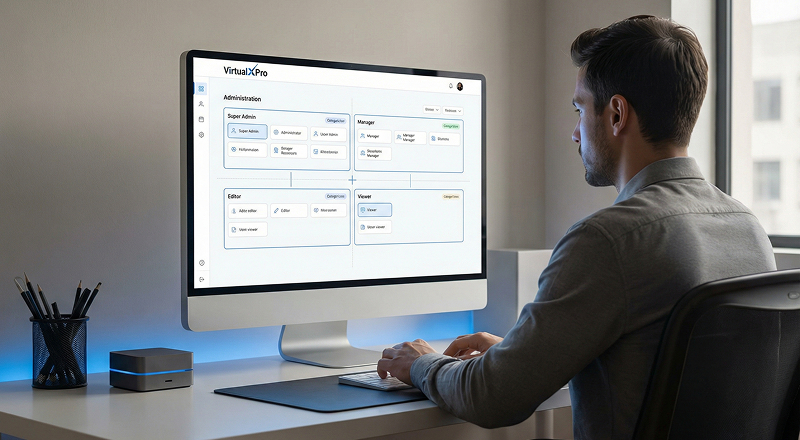
Set distinct roles for admins, teachers, students and guests.
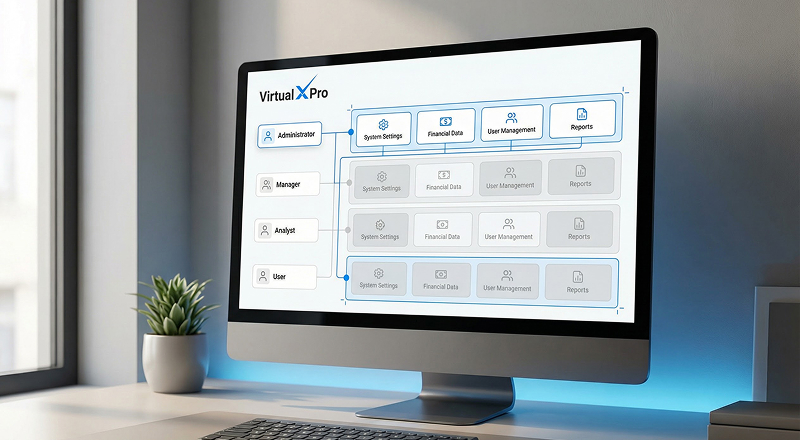
Control what each role can view and perform.
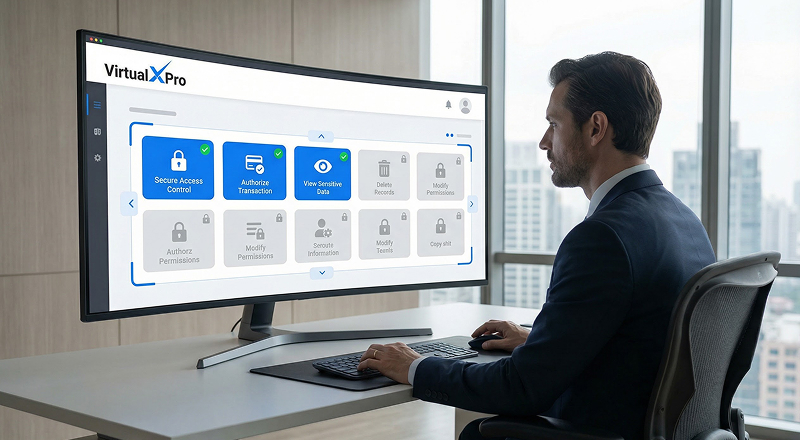
Limit critical actions to authorized users only.
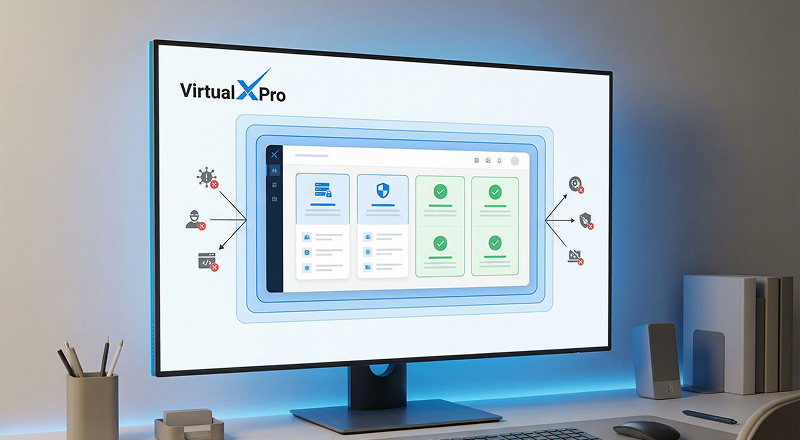
Protect the system from misuse or data tampering.
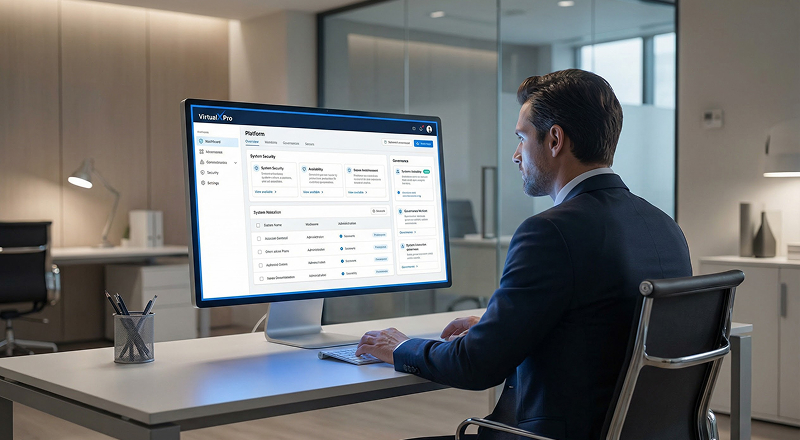
Improve overall system safety and governance.
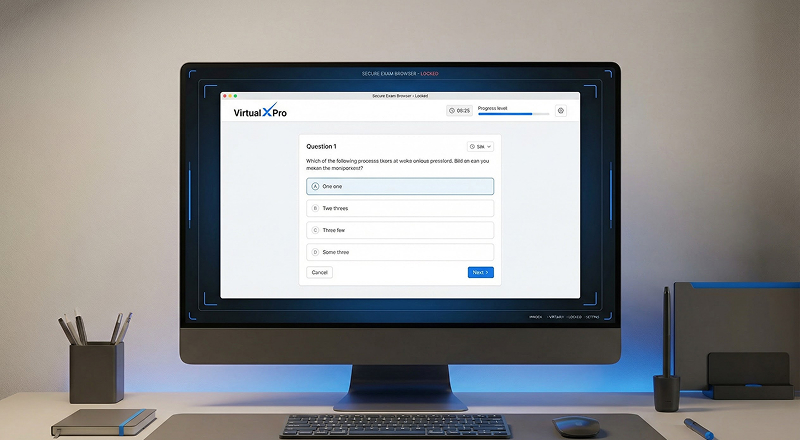
Launch exams in a controlled browser mode.
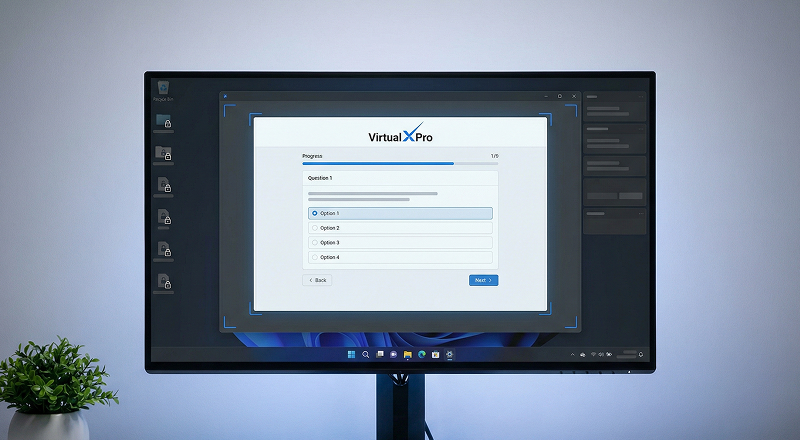
Restrict access to other applications during the exam.
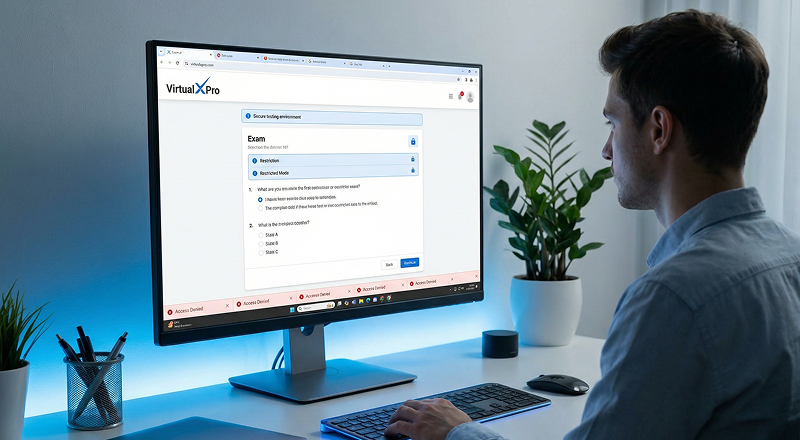
Prevent opening new tabs, apps or websites.
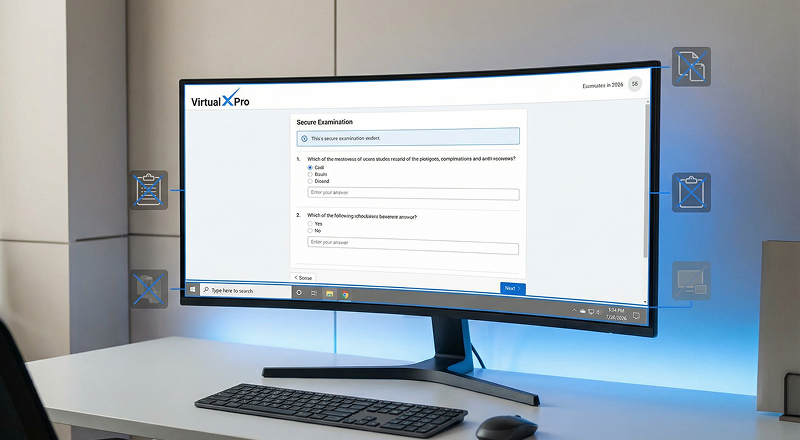
Block copy-paste and screen navigation.
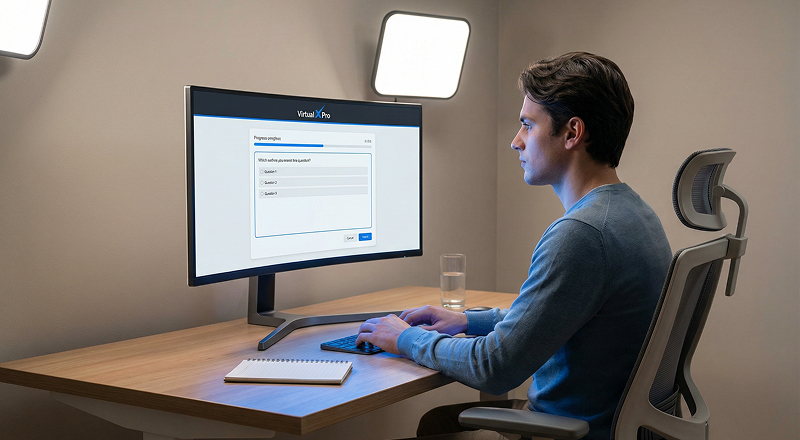
Ensure students remain focused only on the exam.
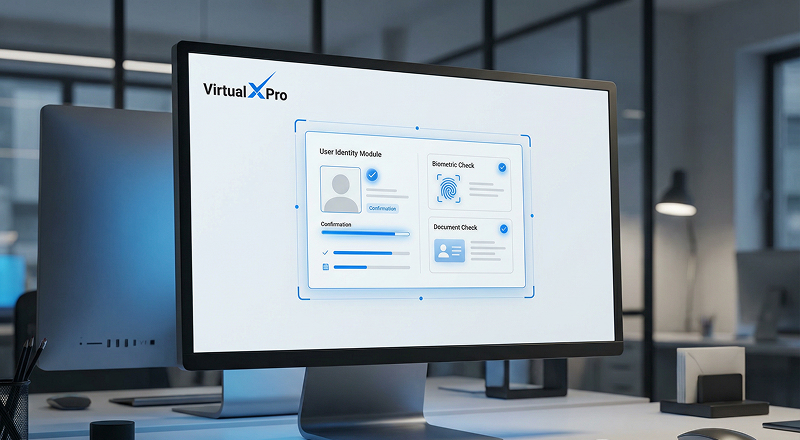
Initiate identity verification before the exam to ensure only authorized candidates proceed.

Capture the candidate's Face ID image to create a reference for identity validation.
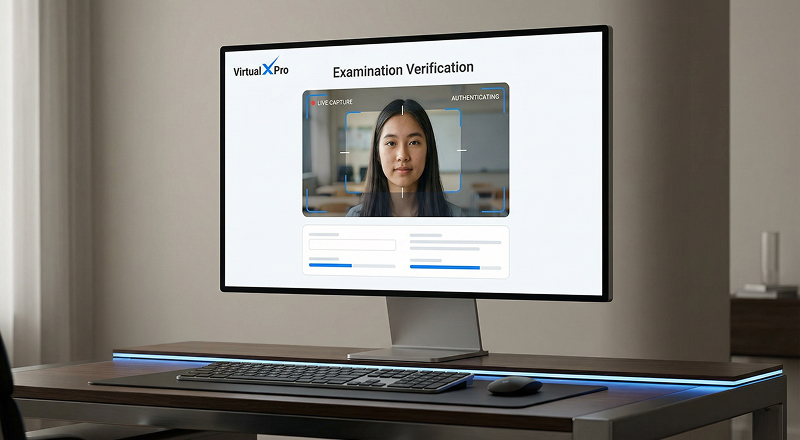
Capture real-time images of candidates throughout the entire exam process.

Enable administrators or proctors to manually review and compare captured images for verification.
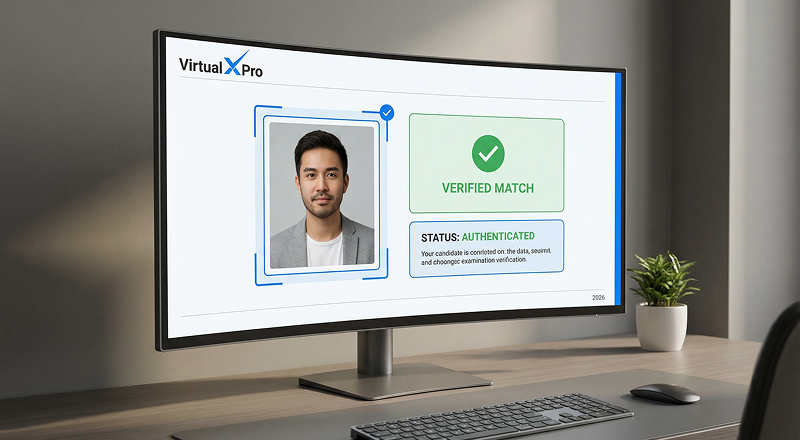
Confirm that the registered candidate is the one attempting the exam, ensuring exam integrity.
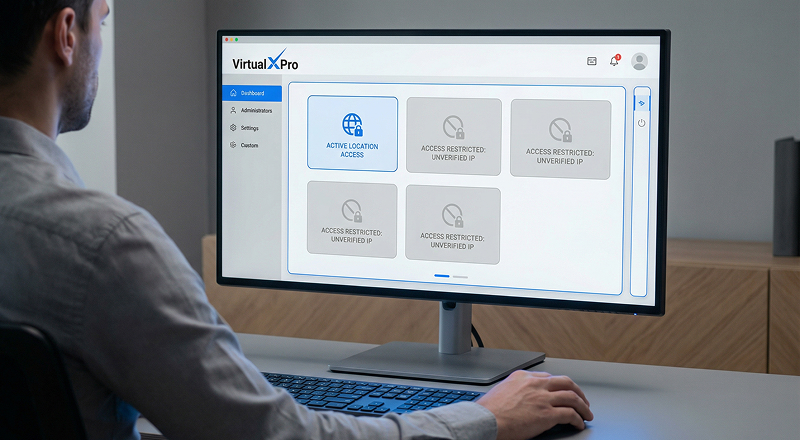
Limit exam access based on IP addresses.
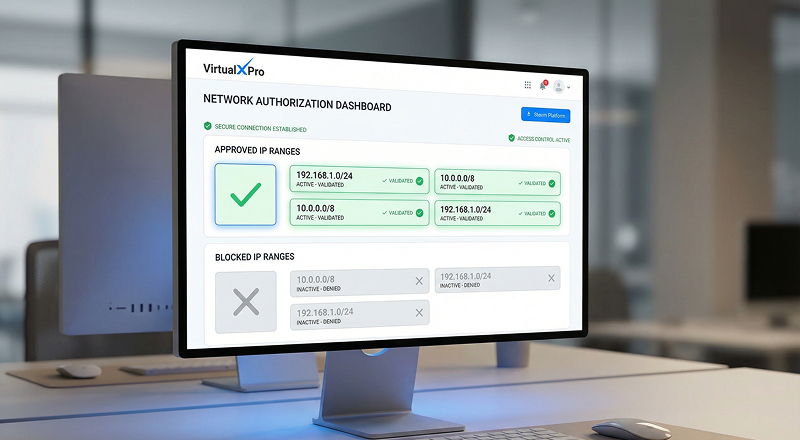
Allow exams only from authorized IP ranges.
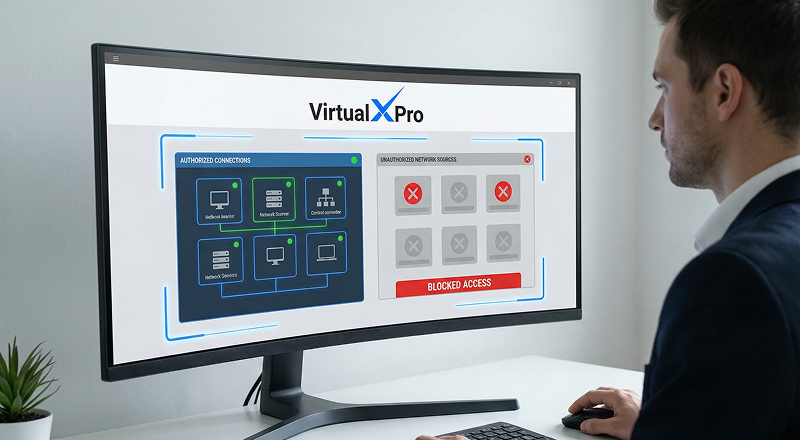
Prevent access from unapproved networks.
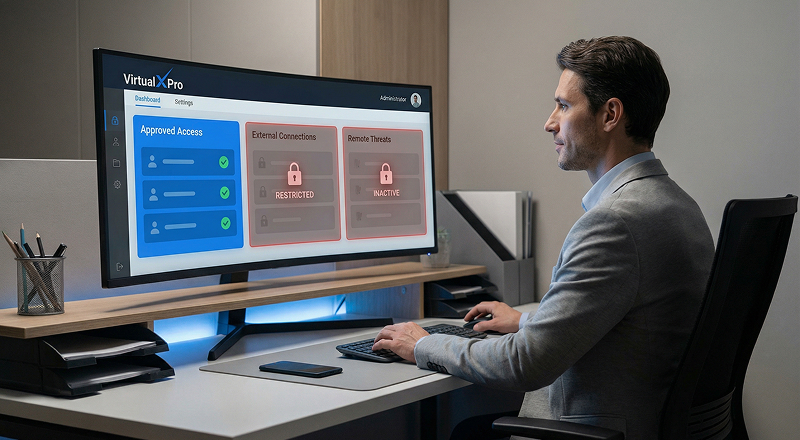
Reduce risks from external or remote access.
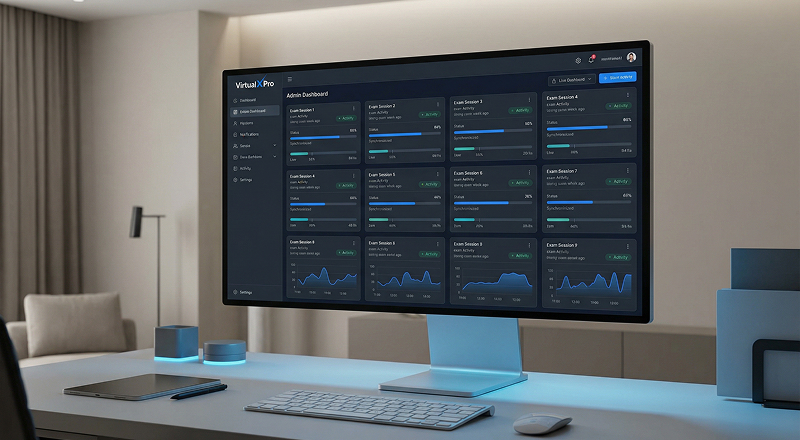
Track live exams through the admin dashboard.
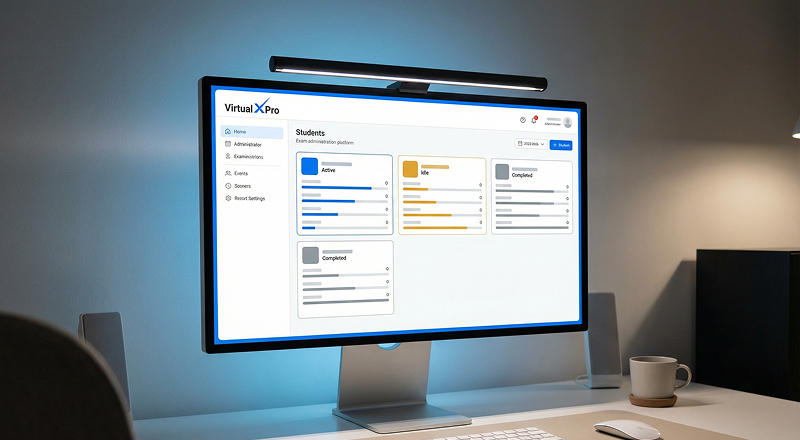
View students who are active, idle or completed.
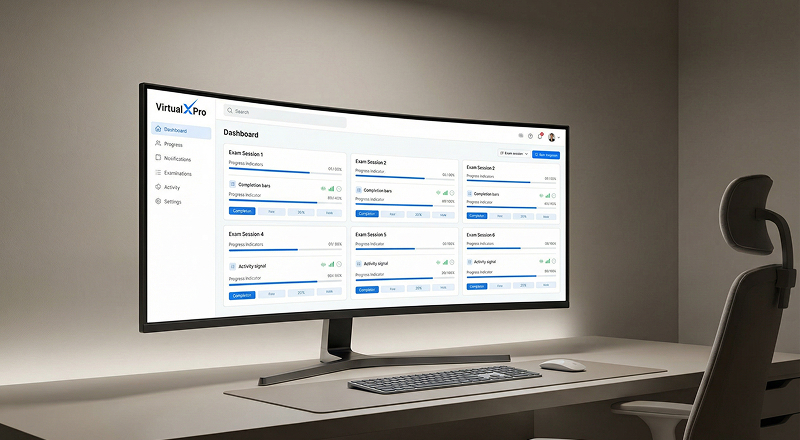
Monitor exam progress as it happens.
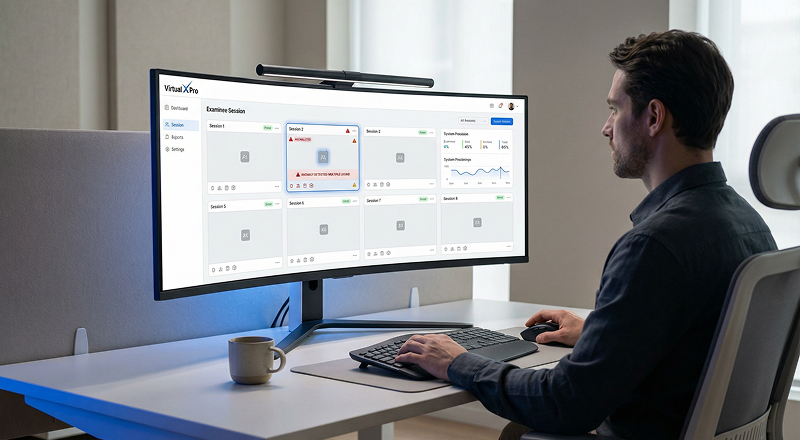
Identify suspicious activities such as multiple logins.
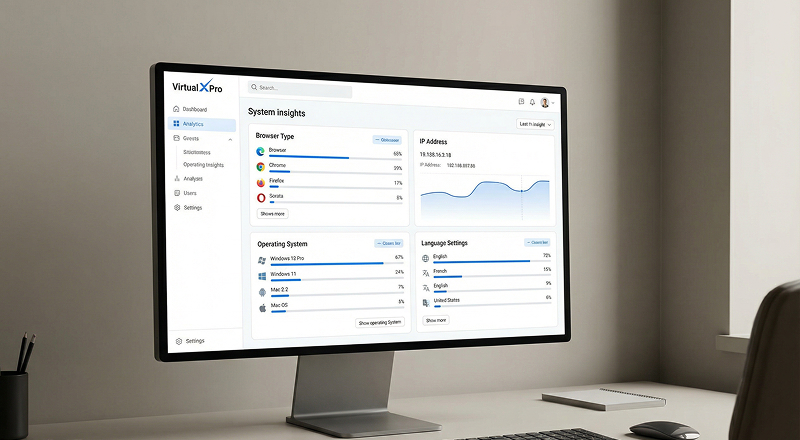
Track browser, IP address, language and operating system details.
